Shopify App Store review evidence
Findeliq AI Search
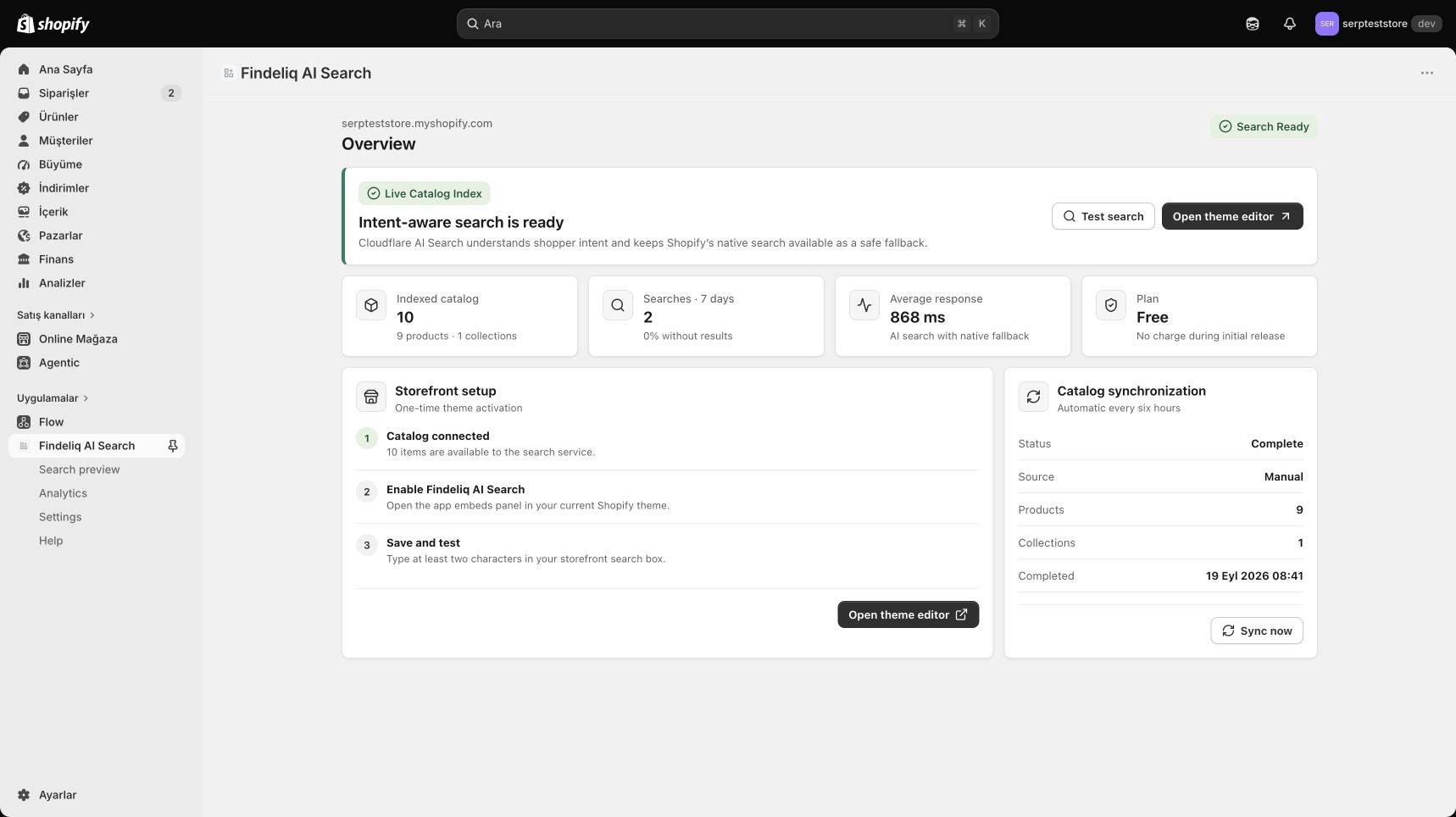
Live evidence captured on the Serp Store development store after a full uninstall and reinstall. The app required fresh Shopify authentication, rebuilt an isolated catalog index, and completed storefront search tests on desktop and mobile.
Fresh reinstallNew OAuth session and isolated Cloudflare AI Search instance.
Catalog complete9 products and 1 collection, with no synchronization error.
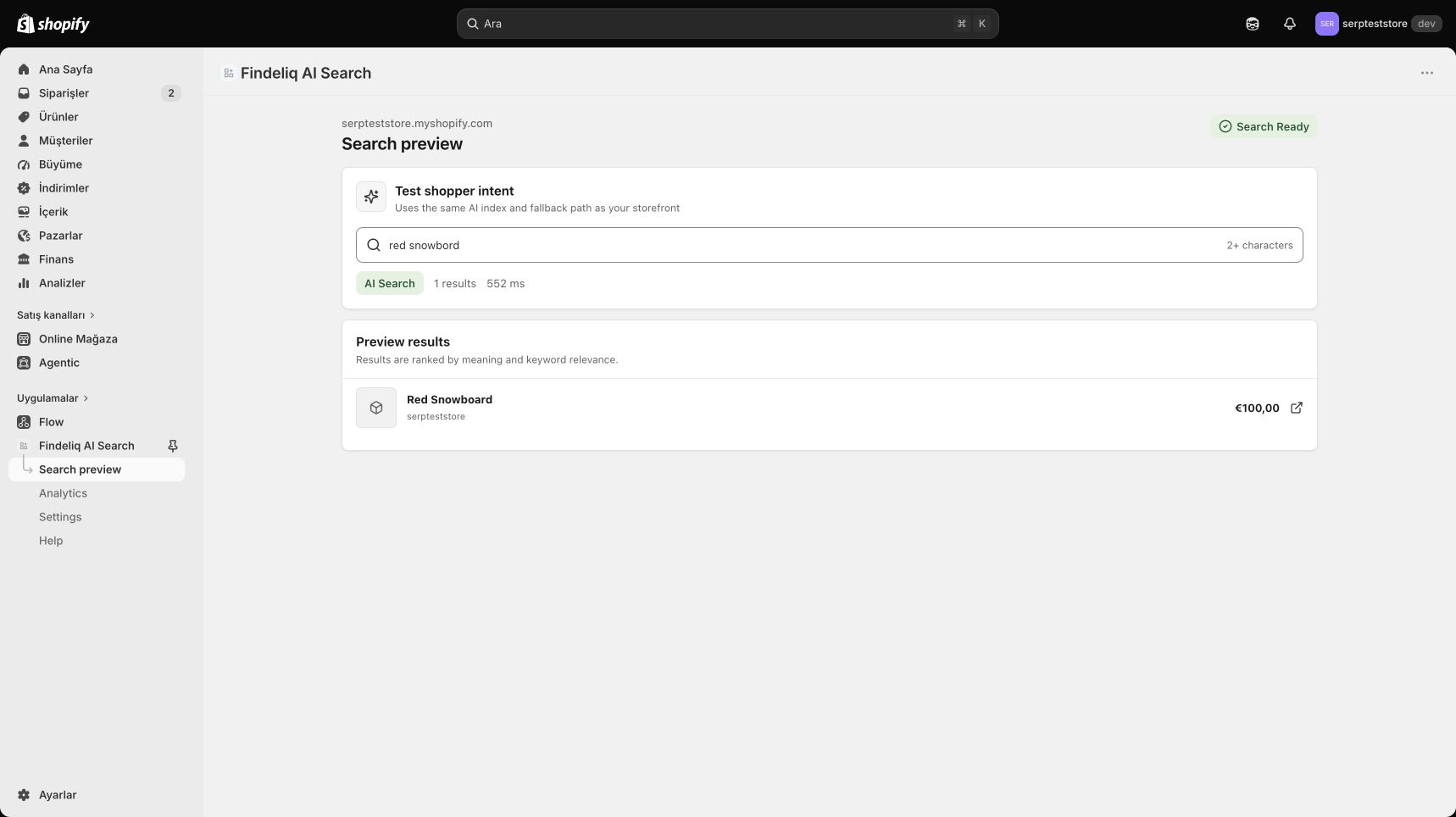
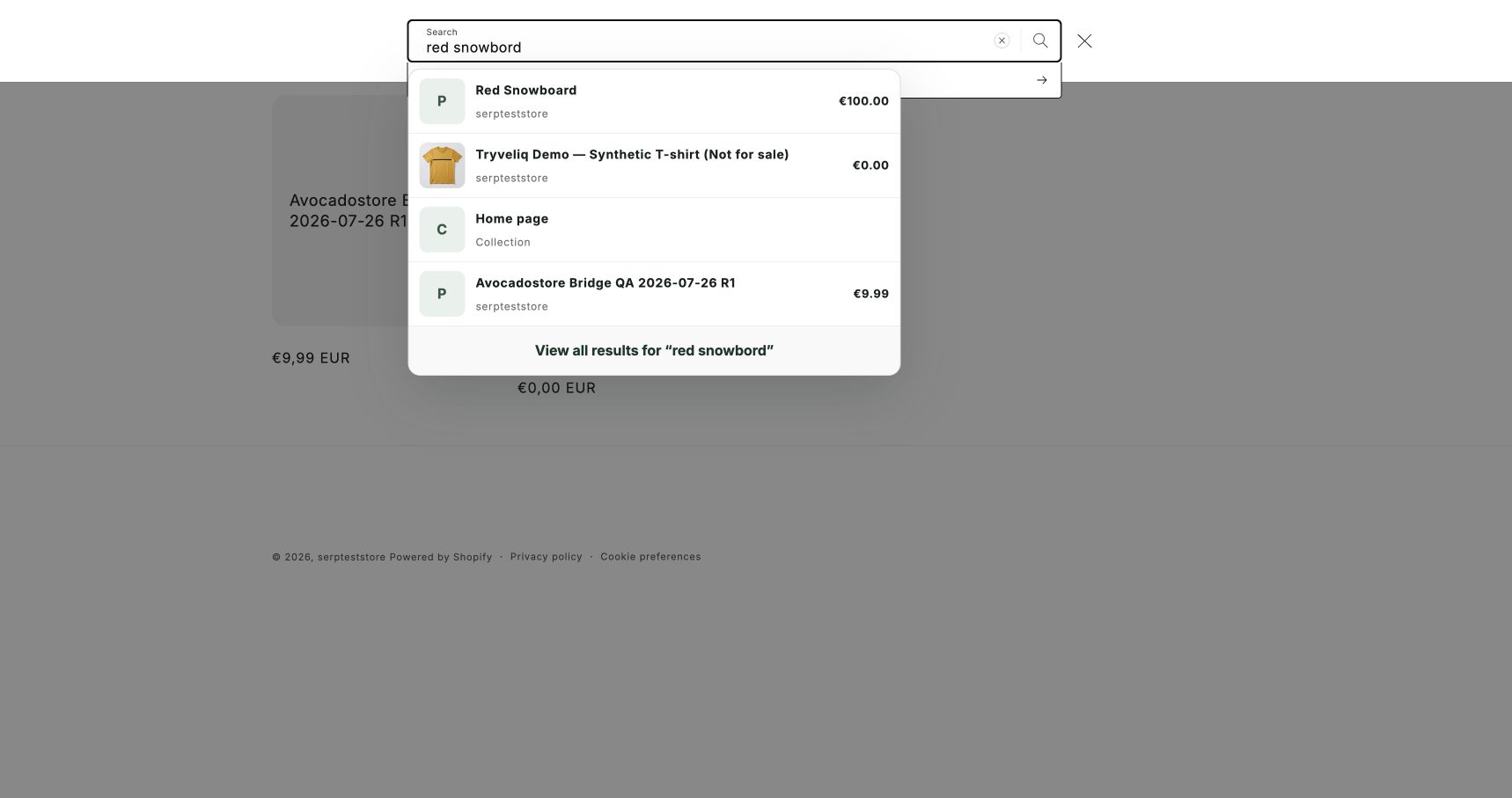
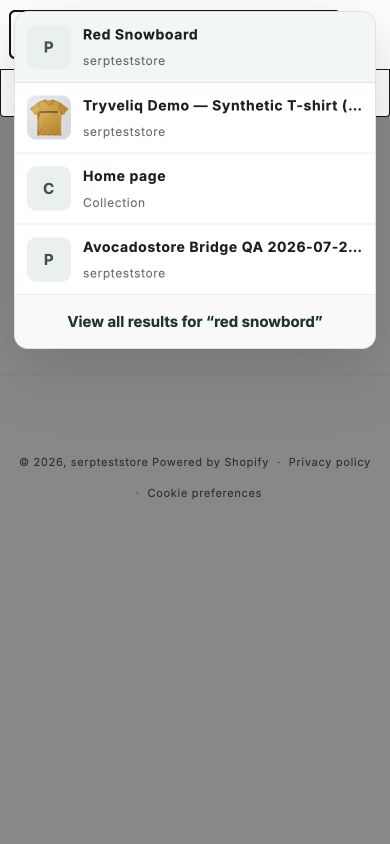
Typo tolerant“red snowbord” returns Red Snowboard first on desktop and mobile.
Pricing update — October 5, 2026: The historical video shows the former free release. Current setup requires approval of Findeliq Monthly in Shopify: USD 9.90 every 30 days, with a 7-day first-subscription trial. Follow the current setup steps below.
Review walkthrough — 3:08, English subtitles, no audioSubtitles are burned into the video and require no player settings. No account, sign-in, password or access request is required. The walkthrough uses merchant and storefront screens captured on September 19, 2026; English subtitles were added October 2, 2026.
How to set up and test Findeliq
- Install Findeliq AI Search through Shopify and approve the read_products permission. No external account is required.
- Open Billing, choose Findeliq Monthly and approve the subscription on Shopify's top-level billing screen: USD 9.90 every 30 days after the 7-day first-subscription trial. Development-store test charges do not collect money. Declining must leave paid features locked; reinstalling requires fresh approval and does not restart consumed trial time.
- Open the app's Overview. Wait until catalog indexing completes and the status is Search ready. Use Sync catalog now to start a manual rebuild if needed.
- Open Search preview and search for a product present in your store. Try both its correct spelling and a typo. The demonstration store contains Red Snowboard: try red snowboard and red snowbord.
- Click Open theme editor, enable the Findeliq AI Search app embed under App embeds, and click Save. No theme-code changes are needed.
- Open the storefront, open the theme's search field, and type at least two characters. Check product and collection suggestions on desktop and mobile. Click a product to open its product page; press Enter or use View all results to open Shopify's native search results.
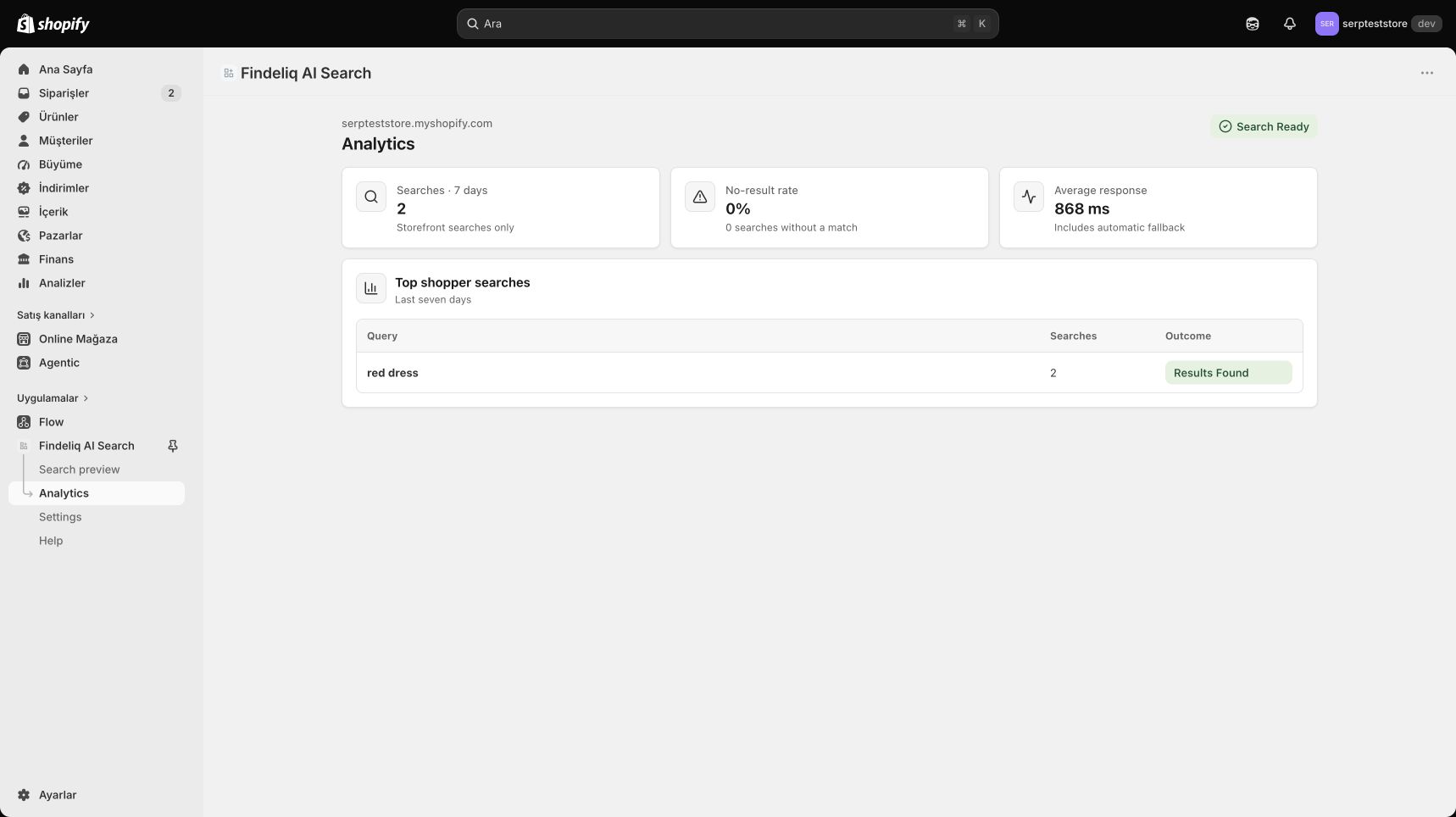
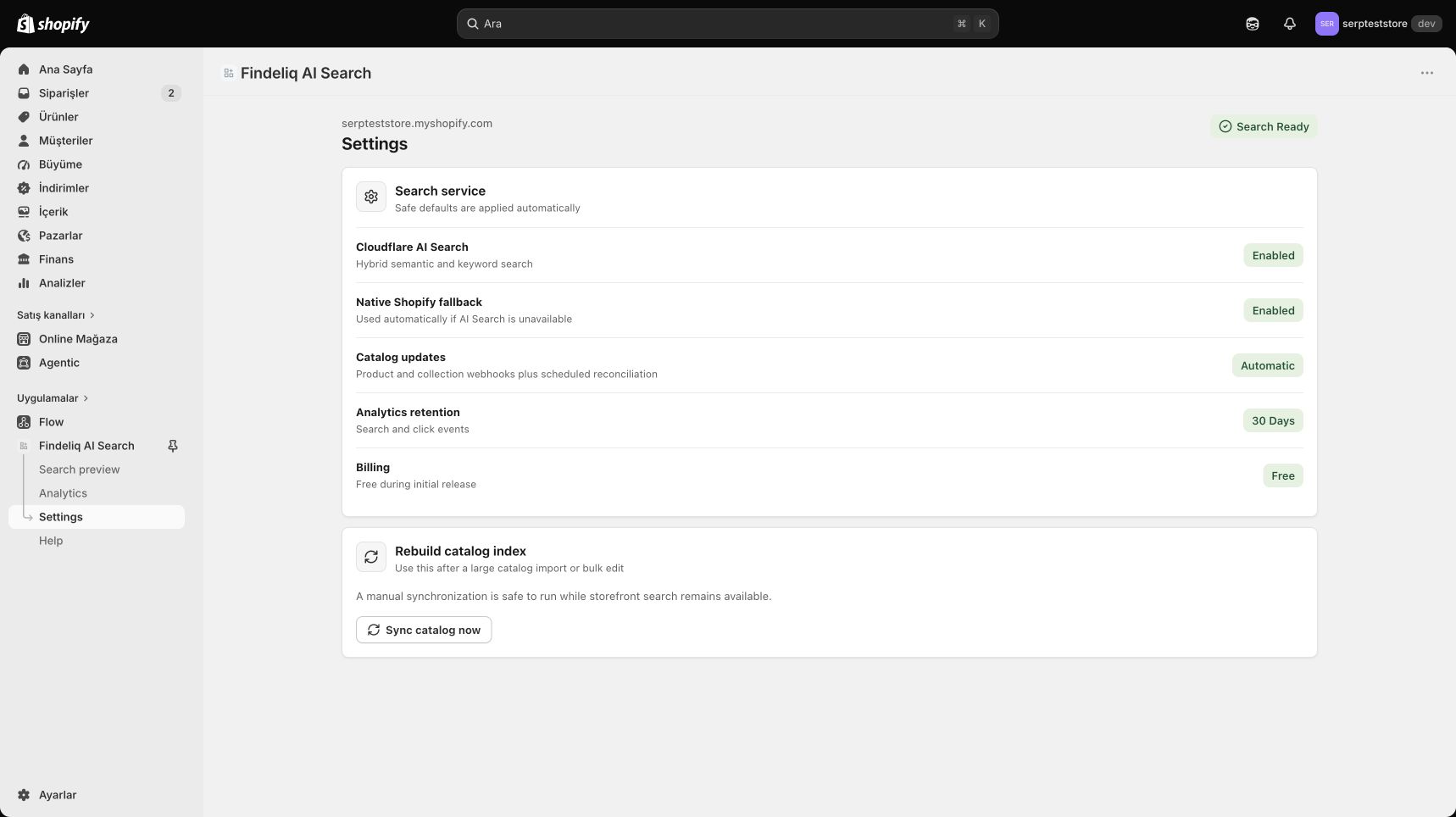
- Review real search events on Analytics. Open Settings and Help to check the service configuration and support information.
If the AI service is unavailable, native search remains available. The screenshots below are historical development-store evidence, not a claim about the contents of your review store.